Topics

Showing posts with label G-Suite For Education. Show all posts

April 25, 2017

The Keyword: Google’s Very Own One Stop Resource for All Things Google

This Week’s Topic in Focus:
Each month our Digital Learning Team will feature a connection that we feel exemplifies and supports our mission and goals. Our hope is that you find so much value and worth in that resource that you decide to add that resources to your own Personal Learning Network. Check out this month’s featured item:

Image acquired from: GoAndroid

The Keyword: Google’s Blog
Finding out updates, releases and all other types of Google related news used to be quite a chore.  The outlets for this sort of information never seemed to be consistent and it was difficult to know what was Google generated and what was being produced by non-affiliated sources.  All of that changed last year when Google launched its new one stop blog: The Keyword.  

Any time Google has something cool it wants to tell the world, they post it to this blog!  
  • Did you know that Google Earth has just received a massive facelift, and is now entirely web based (yes, you can now use Google Earth on Chromebooks!).
  • Have you had an opportunity to explore the Google Arts and Culture site?  Google has created vignettes packed full of rich super high definition images, video, and map integrations accompanied with textual information and links that thread information together in a manner that fosters inquiry and exploration all on an aesthetic but simple web canvas.  Check out the Made in Italy Project as an example. To get an understanding of what I mean by super high definition images, check out The Starry Night by Van Gogh and zoom in.  Notice the violent brush strokes that make his work so distinct as well as the minor cracks that present themselves due to over a century’s worth of aging.

  • Did you know that Google Maps, now automatically translates all reviews in your native tongue? If you travel abroad, you will now be able to search for restaurants and other attractions and read reviews from those in the area translated in the English language.
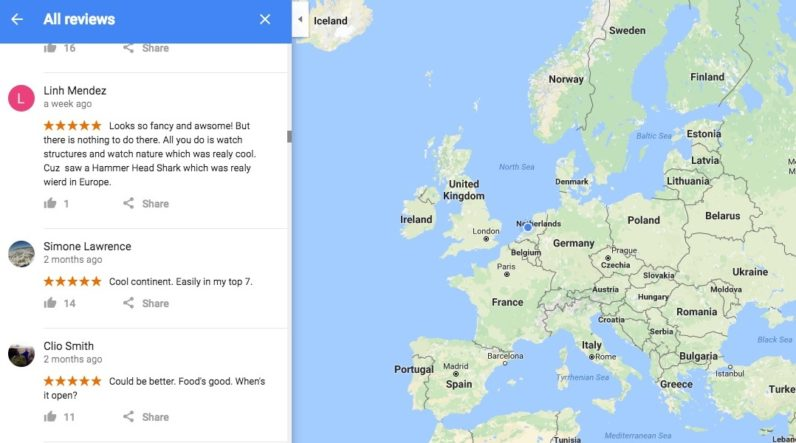
                Image acquired from: The Next Web
  • Autodraw, a new tool that uses artificial intelligence to guess what you are trying to draw and then makes a suggestion of related drawings for you to choose from, has not officially launched!  Drawing on your phone or computer has been a slow and painful process, until now.  
AutoDraw_1.gif

All of these tidbits were gathered from the homepage of Google’s blog at the time I published this post.  Because it is a blog, every post is archived by date so that I can easily search and retrieve it for later use.  
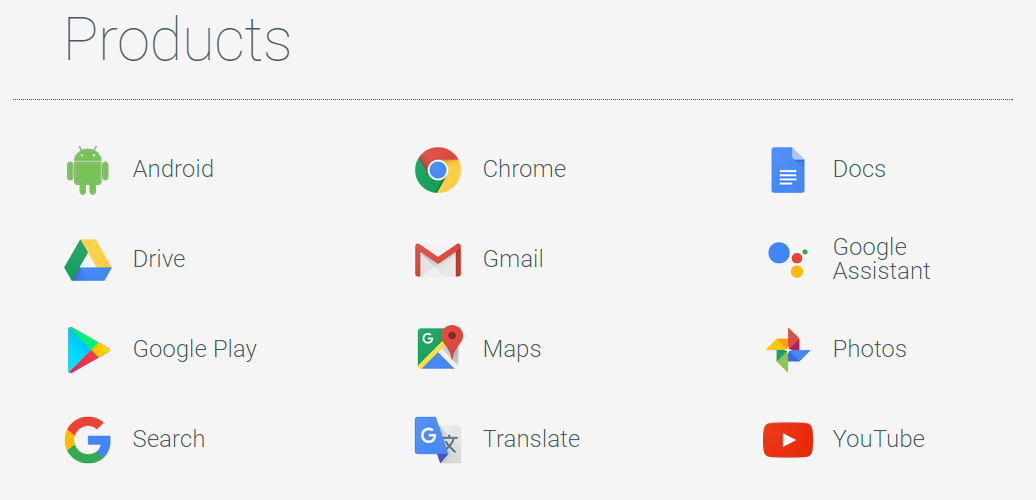

You can also surf blog.google by product.  See what Google has to say about Google Docs or YouTube.  Products are not only limited to the icons shown above. Finally, you can surf by topic.  One of those topics is education. 

Regardless of how frequently you visit or what products or topics might interest you most, there will always be some new resource or artifact of inspiration waiting for you at The Keyword, Google’s Official one stop resource for all Google News.  

Would you like to integrate something you see on The Keyword but need some help?   See your DLS to kickstart a conversation - Cheryl, Kyle or Melanie.

Contributed by Kyle Mack @ProfKyleMack

March 29, 2017

G-Suite Updates of Awesomeness!

Bonus Post! Focus: G-Suite for Education Updates


Great googly-moogly, there are some amazing updates to G Suite recently and I wanted to make sure you knew all about them! Here are some short overviews of new releases or updates.

Image acquired from: All Saints Catholic School

Team Drive

First things first, those of you that use your Google Drive via the web view have probably noticed the new Team Drive option that appeared in your Drive this week.


A Team Drive is a shared space where:
  • A Team Drive would be a great place for a curriculum team or grade level team to house their work as it is in progress or when it is ready to share.
  • Members of a Team Drive share ownership of any files and folders.
  • If someone leaves the Team Drive, any files they added will stay.
  • You can still share files with a link or invite.
To Create/Use a “Team Drive”
  1. Click on the “Team Drive” Icon
  2. Click on the blue “New Button”
  3. Give your “Team Drive” a name
  4. Double click on your newly created team drive and click the “+Add members” link and add your prefered team members. Make sure to give them the correct access permissions by clicking the down arrow under the “Add Names” line.
  5. To add items or create items in your Team Drive, use the “New” button as you would when you are adding anything to your personal drive.


Google Slides and Videos

Now, let’s talk about about Google Slides and Videos. In the past, you have only been able to embed a YouTube video into your Slides presentation. This new update allows you to embed any video that you have housed in your Google Drive directly into your presentation instead of creating it as an external link. If you have used a video creation program like Screencastify, WeVideo, Animoto, or any other program where you can create and save a video file into your Google Drive, you can now embed and play the video right in a Slide.
  1. Create your video and save it in your Google Drive. The best format is usually an MP4 file type.
  2. Create the Slide and insert the video - follow these easy steps - video link
  3. You can right click on the video for autoplay or cropping options.

Forms Allow for Document Uploads

You can now create a question in Forms that allows you to have respondents upload a file as their response. All files uploaded as a response will be placed in the Form owners Google Drive for easy access.  You can even select the file type, size, and the number of files that the respondent can upload for you. Here is a quick video that shows you the process - video


Google Keep integrates with G Suite apps

Google Keep is a note taking/keeping app that has been often overlooked. At its most basic, it is a tool that you can use to create lists. If you want to use it in a more robust fashion, you can create notes with images, links and videos that can then be shared with any of your other Googly friends in the same way that you can share a Doc, Form, Slide, etc. There is even a handwriting tool for those of you who like to keep handwritten notes or doodles.


Keep is now fully integrated with Google Docs. When you open Keep as a tool in Docs , it becomes a bar running on the right side of your screen. You can click and drag any of your notes onto your Doc or you can copy and paste into any comments that you create. Watch this to see an example of how it works: video


Here is an excellent article by one of my favorite bloggers, Eric Curts. This article gives step-by-step directions on how to create Notes in Keep and then how to use this feature to save time when you are giving student feedback on Google Docs.  

Hopefully you found something valuable in these updates! Forest Hills educators, contact your DLS for further assistance. All others, feel free to use the comments sections to share your thoughts and ideas.

Contributed by Melanie Zolnier @libary_techer

March 22, 2017

Using Google to Encourage Students as Creators

This Week’s Topic in Focus:  Using Google to Encourage Students as Creators

Each month our Digital Learning Team will deep dive into a specific feature or tool in Google. This week we will take a look at using Google to encourage students to be creators.
For many educators GSuite for EDU is great for organization and workflow. If you haven't already, consider using Google tools as a way for students to create and show what they know.  George Couros states one of the characteristics of the innovator’s mindset is to be a creator.  
“Creators- Anyone can consume information, but that doesn’t equate to learning.  The Center for Accelerated Learning notes:
         Learning is creation, not consumption. Knowledge is not something a learner absorbs, but something a learner creates.  Learning happens when a learner integrates new knowledge and skill into his or her existing structure of self.  Learning is literally a matter of creating new meanings, new neural networks, and new patterns of electro/chemical interactions within one’s total brain/body systems.”


Explore and consider these Google tools for students to be creators of content.


STUDENTS CREATE


DOCS
SLIDES
SITES
MAPS/YouTube/Drawings
*Shared Doc to create study guides, create individual or collaborative reports
*Write poetry
*Cartoon strip
* eBook
*Choose Your own adventure story
*Digital Storytelling
*Digital portfolio to share the best of their work, show growth and share with the world
*Blog
*My Maps - create a map, tour, share facts and artifacts

*YouTube - create videos to explain a topic, share what they know in creative ways and more
*Sketchnoting
*Diagramming
*Posters


If you would like help implementing any of these ideas in your classroom, see your DLS.

Feel free to use the comment feature to share how you are using Google to have your students create. We look forward to learning from your ideas.

Works Cited
Couros, George. The Innovator's Mindset: Empower Learning, Unleash Talent, and Lead a Culture of Creativity. San Diego, CA: Dave Burgess Consulting, 2015. Print.

February 22, 2017

Google Drawings and Infinite Possibilities

This Week’s Topic in Focus:  Google Drawings
Each month our Digital Learning Team will take a look at a G Suite for Education feature that will hopefully empower you to dive deeper into educational uses for this tool.
Drawings.png
An often overlooked and definitely underused program in G Suite is Google Drawings. Drawings gives the user a blank canvas that, just like every other application in the Google product line, allows for creativity and collaboration. At its most basic, Drawings acts as a desktop publisher. Start with a blank canvas, add text and images, then download or share. Drawings can be downloaded as a PDF, png, or jpg. Drawings can also be published directly to the web! What is special about this product are the limitless applications for the classroom.


Drawings as a Note Taking Tool:


  • Sketchnoting is the idea that students create a personal visual story as they listen to a speaker or read a text. Use Drawings to have students create their sketch note then have them share their notes with the class. (Want to learn more about sketchnoting? Here is a great portal to multiples links created by Kathy Shrock: http://www.schrockguide.net/sketchnoting.html)
  • Graphic organizers have been used for decades to help students organize their thoughts as they interact with material. Use Drawings to have students create their own graphic organizers or create your own organizers to share with the students. Here is an excellent resource from Matt Miller at Ditch That Textbook: http://ditchthattextbook.com/2015/02/19/15-free-google-drawings-graphic-organizers-and-how-to-make-your-own/
  • Students can now interact with web content in a more meaningful way. Share a web page or resource with students, have them take a screenshot, import it into Drawings and then annotate it.


Drawings as a Collaborative Space


  • Many teachers like Padlet because it allows students to share ideas in a collaborative web location. The same function can be completed by creating a blank Drawings canvas that is shared with students. Students can create their own sticky notes, share images, and even share links. The nice part of this is that this is all completed within your school district’s Google organization and no third party sites are required
  • Group projects with poster requirements have never been easier than when they are done with Drawings. One student creates the poster, shares it with their group, and now all students can contribute digitally.


Drawings as an Assessment for/as Learning

  • Students create diagrams during lab work
  • Students create an infographic to showcase understanding of a concept
  • Students create a Drawing that explains their process and thinking on a math problem
  • Students use Drawings and Google Maps to teach about historical or geographical concepts
  • Students create a poster for projects like the science fair
Science Fair Poster.png


Drawings to Inspire Creativity


One of my favorite uses of Drawings recently came from Meghan Treglia and Stacey Reeder, sixth-grade teachers at Mercer Elementary (@mrsmegtreg and @staceyreeder). Their classes were challenged to create a new emoji to fill the gaping emoji hole we all experience on social media. Students had to design survey questions for their peers to seek out exactly what type of emoji was needed. They also created rubrics for what qualities each emoji needed to have and how the presentations to the class should look. Students worked in their collaborative groups to create their emoji’s and presentations. The classes went through multiple rounds of “Creation and Defense” sessions, with the kids voting for their favorites based on sound argumentative reasoning. My vote was for the “Shaking My Head” emoji but the winner of the 2017 Emoji War was the TRAMPOLINE!


Shaking My Head (1).png
These suggestions are just the tip of the iceberg! So many possibilities, so little time! If you are interested in learning more about Google Drawings and their applications in the classroom, contact your FHSD Digital Learning Specialist for assistance and coaching.
If you want to explore on your own, these two resources should help get you started:

Contributed by Melanie Zolnier @libary_techer

February 1, 2017

Control Alt Achieve - Eric Curts

This Week’s Topic in Focus:  Control Alt Achieve: Transforming Education with Technology

Each month our Digital Learning Team will feature a person or blog that we feel exemplifies and supports our mission and goals. Our hope is that you find so much value and worth in their work that you add them to your own Personal Learning Network.


G Suite for Education (formerly Google Apps for Education) has completely changed the educational playing field. The G Suite vision to help teachers and students share and learn together in innovative ways has taken teachers and students out of silos and allowed a collaborative environment to take hold in classrooms and school district across the country. Not only are students and teachers able to work more collaboratively, G Suite apps like Google Classroom, Docs, Slides, Sheets, and Google Cast have streamlined workflows, allowed students to take ownership of their learning environment, and opened the doorway to new ways of learning.


With all of this technology at our fingertips, it sometimes feels overwhelming to stay abreast of updates, changes and new features. In addition, it is often difficult to know exactly the best or most creative way to use these tools in your classroom. That is where ERIC CURTS comes in. Eric is an Authorized Google Education Trainer and a Google Certified Innovator who is just full of creative and helpful ideas for how to most effectively use Google tools in your classroom. He is the author of the blog Control Alt Achieve: Transforming Education with Technology. Control Alt Achieve features pedagogically sound suggestions and activities that can be implemented immediately in any classroom, no matter what the grade level. Eric keeps his readers updated on new releases and features in the G Suite apps. His blog also offers fun, quick activities that teachers can use. A Forest Hills favorite was the “Build a Snowman with Google Slides” activity.


Let Eric help guide you on your G Suite for Education journey by following his blog. You won’t be disappointed!
Follow him on Twitter: https://twitter.com/ericcurts


Contributed by Melanie Zolnier @libary_techer


January 23, 2017

Marry Google Classroom to Schoology for Maximum Success!

This Week’s Topic in Focus:  Google Classroom

Each month our Digital Learning Team will deep dive into a specific feature or tool in Google. Since our district is a Schoology district, we decided to show how a marriage between Schoology and Google Classroom can make you the most efficient teacher ever!


One of the biggest complaints that we hear from our teachers is that using Google tools for assignments can be an organizational and logistical nightmare. Setting up permissions, having material shared back, or managing copies of Google Docs has led to a quagmire of a Google Drive. Google Classroom takes away that angst and makes creating and sharing assignments a breeze!

What is Schoology?:


Schoology is a robust Learning Management System with a full arsenal of tools and capabilities that allow for complete digital classroom integration.

What is Google Classroom?:

Google Classroom is also billed as a Learning Management System. It is not as robust as Schoology, but it is an amazing resource management tool that makes digital sharing and Google Drive integration a breeze!

Schoology vs Google - The Fundamental Differences:

We have created a line-by-line analysis of the features of both Schoology and Google. Take a look! Click on the link for the full table.

Schoology vs. Google 


As you can see, each system has its own drawbacks and benefits. Each one used in isolation would give a fine learning experience, but if you were to use them in conjunction with one another you will become unstoppable!. The Google Classroom features that allow you to share resources, streamline your workflow, and organize materials for students along with the assessment features and special tools in Schoology that create a complete digital classroom make for a rich and manageable online learning environment.

Why You Should Use the Tools Together:


Schoology allows you to create a data-rich environment for your class. With Schoology, you can create a blended learning environment by using the tools at your disposal. In addition to the ability to create assignments and assessments that are linked to content standards and mastery objectives, you also have access to features that allow your students to work in groups and at their own pace. Your Schoology course also becomes a complete digital classroom for students and parents to access your teaching materials. There are tools that allow you to create multi-media assignments and activities. Schoology also acts as an excellent communication tool at a classroom, building and district level. Google Classroom allows you to create assignments for each student that will show up right in their Google Drive. There is no need to “Share” materials with each individual student because Google Classroom does the work for you. It also allows students to turn-in materials to Classroom directly, eliminating the 100’s of “Shared with You” emails. Students all receive their own personal copy of an assignment, so you never have to worry about forcing copies. Because students are working within the Google Classroom folder, you also have to ability to monitor their work, view their revision history and collaborate with them on an assignment. In addition, Google Classroom has several extensions, apps, add ons, etc. that provide ways to share resources and streamline the real-time classroom workflow process. When you use the two platforms together, you can create the assignment in Google Classroom, post the link directly through the assignment feature in Schoology, and voila, you are able to have your students working seamlessly in both places.


How To Create a Blessed Union of Souls - Teacher Steps:

  1. Go to classroom.google.com and create a Google Classroom.
  2. Use the “plus button” and select “Create Assignment” in Google Classroom.
  3. Name the assignment and provide instructions for the students.
  4. Attach your Google Doc using the Google Drive icon.
  5. Once the Google Doc has been uploaded, decide how you want students to interact with your document by clicking the down arrow to the right of the file. (Make a copy for each student)
  6. Click the blue “Assign” button.
  7. Create an assignment in Schoology
  8. Post link to Google Classroom stream page in Schoology assignment.

How To Create a Blessed Union of Souls - Student Steps:

  1. Find "Assignment" (as you have named it)
  2. Click Open
  3. Click on the Hyperlink to access the Google Doc (notice the naming convention)
  4. Complete all of the tasks requested of you in the Google Doc

Turning Into Schoology:

  1. Use the assignment submission tool and Google Drive App to submit this assignment in Schoology.

Turning Into Google Classroom:

  1. Click the “Turn In” button when you are ready to submit in Google Classroom
  2. Google Classroom will provide a second prompt screen to verify that you do in fact want to turn in the assignment. Click the “TURN IN” button again.

Features in Google Classroom that we love!:

  • Assign materials to the whole class or individual students
  • Assign videos or embed videos into assignments
  • Use the 'Share to Classroom" tool to grab web content to share directly with students.
  • Use Google Cast for Education to allow students to share their screen with you in real-time.


FHSD educators:  Contact your  building’s Digital Learning Specialist for assistance and coaching.  
All educators: Feel free to use the comment feature to share how you are currently using Google Classroom and/or Schoology.

Contributed by Kyle Mack @ProfKyleMack and Melanie Zolnier @libary_techer